> For the complete documentation index, see [llms.txt](https://docs.incidenthub.cloud/llms.txt). Markdown versions of documentation pages are available by appending `.md` to page URLs; this page is available as [Markdown](https://docs.incidenthub.cloud/incidenthub-documentation/channels/integration-for-bolddesk.md).
# Integration for BoldDesk
How to integrate BoldDesk with IncidentHub to receive alerts
You can integrate IncidentHub with BoldDesk to receive notifications as support tickets in your BoldDesk portal.
IncidentHub will create tickets in your BoldDesk workspace when any of the following happens:
1. An incident or maintenance is triggered (started).
IncidentHub does not send follow up notifications to BoldDesk for the same incident or maintenance, including for updates and resolved events. It also does not send upcoming maintenance reminders to BoldDesk.
## In Your BoldDesk Account
1. Login to your BoldDesk account and click on "My Profile" on your account icon's menu on the top right.
2. On your profile page, click on "API Keys.
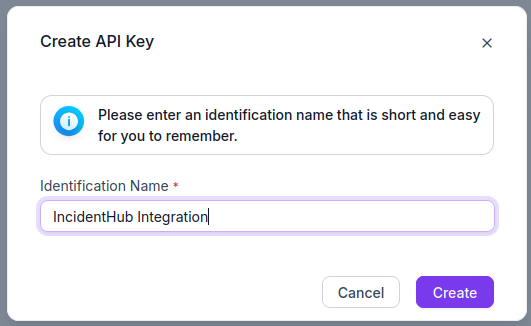
3. Click on Create API Key and name it with something descriptive.
4. Copy the API Key - you will need it in the next step. Note that you cannot view the API key later after you close the popup.
## In Your IncidentHub Account
1. Login to your IncidentHub account and click on Channels -> Add -> BoldDesk.
2. Add a Name and and a Description.
3. For "BoldDesk Domain URL", enter the domain of your BoldDesk portal. This usually looks like `https://mycompany.bolddesk.com`.
4. For "BoldDesk Requester Email ID", enter the email of your BoldDesk account from which you created the token.
5. For "BoldDesk Requester Name", enter the name of the account associated with the email in step #4.
6. For "BoldDesk API Key", enter the API key you created earlier.
7. For "BoldDesk Brand ID", enter the brand id of your BoldDesk account. You can find the ID by
1. Logging in to your BoldDesk account
2. Clicking on "Admin" on the left sidebar.
3. Searching for "Brands". It will show you a list of all your brands along with the ID in the first column.
8. To ensure that the details are valid and IncidentHub is able to connect to your BoldDesk portal, you can click on "Create a test ticket". This will create a test support ticket in your BoldDesk workspace.
9. Click Save.
## Notification Example
A BoldDesk support ticket created by IncidentHub looks like this: